
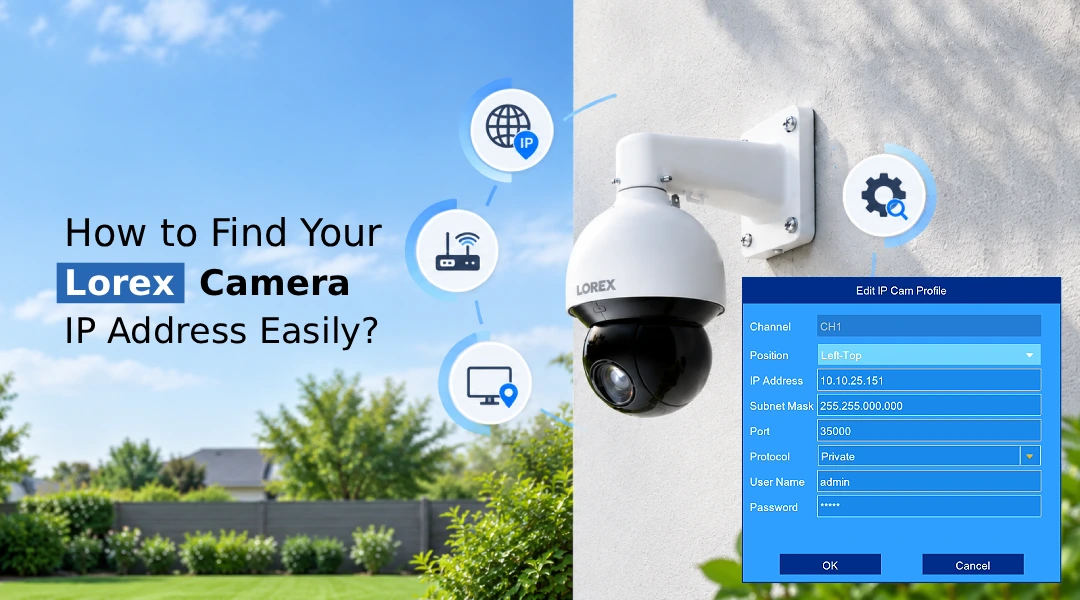
Quick overview
Finding your Lorex camera IP address is essential if you want to configure your security camera, troubleshoot network issues, or ensure that it connects to the network correctly. To do this, you can use the DVR/NVR settings, the router’s attached devices tab, or a network scanner. Which option is best depends on whether you connect your camera to the recorder, use an Ethernet cable, or have a Wi-Fi connection.
Introduction
Are you having a problem finding your Lorex camera IP address? Knowing how to find Lorex camera IP address information will assist you in the process of troubleshooting and configuring the camera. This blog aims to provide you with a way and a method of identifying your Lorex camera’s IP address, checking the default settings, and changing its configurations.
How to Find Lorex Camera IP Address
Follow these easy methods to identify your Lorex camera IP address, depending on your camera’s connection type.
Method 1: Through Your DVR/NVR Recorder
- Open the Lorex camera setup
- Connect a monitor: Connect your monitor and mouse to your Lorex DVR or NVR.
- Open the main menu: Right-click the live-view screen and select Main Menu.
- Go to Settings: Open System, Information, or Network, depending on your recorder model.
- Look for the IP address: Locate the system information or TCP/IP section.
- Locate your own camera: If you want to know an individual IP camera’s address, open Camera, Device Search, or Camera Registration.
- Write down the address: Take a note of an IP address, displayed in front of the required device.
Lorex recorder menus vary from model to model, and the recorder’s IP address may differ from individual camera addresses.
Method 2: Through Your Wi-Fi Router
- Connect your phone or computer to your home network.
- Open a web browser and enter your router’s gateway address.
- Log in to the router’s administration page.
- Open Connected Devices, DHCP Client List, or a similar option.
- Look for your Lorex camera using its device name or MAC address.
- Take note of its corresponding IP address.
Method 3: Using a Network Scanner
- Install a trusted network scanning tool on your system
- Connect your computer to the same network as your camera.
- Scan for active devices.
- Go over the discovered IP and MAC addresses.
- Match the camera’s MAC address with the scan results.
- Write down the correct IP address.
Important: If your camera is connected to a PoE port on your NVR, it is possible that it has been connected to a different network for the camera. In this case, check the recorder’s camera management settings (instead of your home router’s network).
Note: If you can’t find it, refer to your Lorex model’s manual, or visit the Lorex Support Center.
What Is the Lorex Camera Default IP Address?
The Lorex camera’s default IP address is not specified because it depends on the model and network settings. Some cameras use a Dynamic Host Configuration Protocol (DHCP) to assign IP addresses automatically.
For example, a Lorex camera’s default IP address can be 192.168.1.120, but it is just an example because every network has a unique IP address range. However, the IP address for my Lorex camera may be 192.168.1.152.
It is advisable not to try to guess the IP address; check the user manual, recorder settings, or router list of devices. Also, note that the Lorex camera default IP address differs from the recorder’s IP address.
How to Change Lorex Camera IP Address
You may need to change the Lorex camera IP address settings to resolve an address conflict or preserve the network configuration.
- Find the current Lorex camera IP address
- Open the camera or recorder network settings.
- Check if DHCP is turned on.
- If available, change it to manual
- Set the address to an available one on your network (same subnet).
- Set the subnet mask and gateway.
- Save the settings and reconnect using the new Lorex camera IP address.
- Make sure everything works (live view and recordings).
Common Lorex IP Address Problems and Solutions
| Common issue | Suggested fix |
| The camera is not displayed on the device list. | Check your power source, network, and recorder settings. |
| The scanner failed to detect the camera | Make sure the devices are on the same network |
| Your IP address is changing frequently | Check DHCP settings or use a supported reservation |
| The camera appears to be offline | Check your network and recorder |
| The camera’s address is unavailable | Check the address, subnet, and firewall |
Note: If none of the listed solutions work, check out the Lorex Camera Not Working guide to see if it can help.
FAQs
Why can't I find my Lorex Camera IP Address?
Your camera can be offline, connected to another NVR network, or appear under a different name in the recorder or router’s associated device list. Double-check the camera settings in your recorder and the connected devices in your router. Moreover, confirm if the camera is powered on and properly connected to your network.
Does every Lorex camera have an IP address?
Cameras with the Lorex brand that are connected to the Internet have IP addresses. On the other hand, analog cameras that are connected to a DVR (Digital Video Recorder) system do not have an IP address. The reason is that the DVR system processes the video signals from the analog camera. Thus, the video data is not transmitted over an Internet protocol.
Can I use the Lorex Camera IP Address to troubleshoot connection problems?
You can use the Lorex Camera IP Address to test your camera on your network. It means that you can see if your camera is discovered on your network and accessible. However, it cannot ensure that your camera is working correctly or that video streams or recordings are accessible on the server or remotely.
Why does my Lorex camera show offline even though it has an IP address?
The reasons why your Lorex camera is offline even though it has an IP address are network issues, incorrect settings, power failure, or problems with the recorder. First, check if the camera is connected to the network. If needed, reboot the camera and the recorder.
Final thoughts
Determining your Lorex camera’s IP address is a simple process if you know the right tools for the job. Make sure you check your recorder, router, or network scanner and double-check the address before making any changes. This way, you can ensure that everything is working properly and that your security system will remain reliable for as long as possible.