
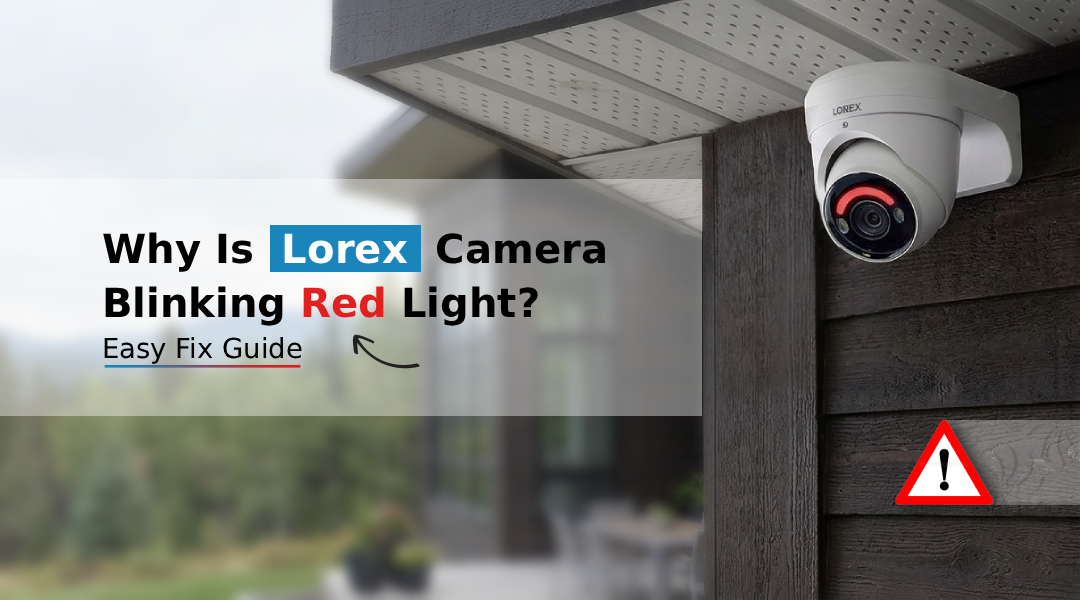
A Lorex Camera Blinking Red Light usually indicates a connection, power, or setup issue. Check the Wi-Fi signal, power adapter and network settings, then restart the camera and router. Reconnecting the camera through the Lorex app often resolves the problem quickly.
If your lorex camera blinking red light has left you puzzled and worried about your home’s security, you are not alone. A blinking red light can indicate a connection, setup, or power-related issue, depending on the Lorex camera model. The good news? Many basic connection and setup problems can be checked and resolved using simple troubleshooting steps.
This complete guide walks you through every possible cause behind the blinking red light, along with step-by-step fixes, so your camera gets back online quickly.
What Does a Blinking Red Light on a Lorex Camera Mean?
Before jumping into fixes, it helps to understand what your camera is actually trying to tell you. LED indicator meanings can vary by Lorex camera model. Check your specific model’s user manual for the exact meaning of each light pattern.
LED Behavior | What It Means |
Solid Blue | Camera is online and functioning normally |
Blinking Blue | Camera is booting up or connecting |
Blinking Red | No network connection / pairing failed |
Solid Red | Camera is recording or in IR night mode |
No Light | Camera may be off or in privacy mode |
A Lorex Camera Blinking Red Light may indicate a network, setup, power, or device-status issue. The exact meaning depends on the camera model.
Top Reasons Behind Red Light Issue
Understanding the possible causes can help you choose the right troubleshooting step. Common causes include:
1. Wi-Fi Network Not Detected or Dropped
A weak or interrupted Wi-Fi connection can cause the camera to lose communication with the network. If your router has restarted, changed its SSID, or if the camera briefly lost signal and failed to reconnect, it will blink red continuously.
2. Incorrect Wi-Fi Password During Setup
A single wrong character during Lorex camera setup is enough to prevent the camera from authenticating with your network, causing it to blink red indefinitely.
3. Camera Too Far from the Router
A weak Wi-Fi signal can make it difficult for the camera to maintain a stable connection. Cameras placed in garages, basements, or far corners of large homes are especially vulnerable to this.
4. Outdated Firmware
Old firmware can cause connection handshake failures that result in the red light blinking, even when the Wi-Fi password and signal are perfectly fine.
5. Power Supply Issues
An insufficient or fluctuating power source can prevent the camera from booting fully, producing a persistent red blink.
6. ISP or Router-Level Restrictions
Some ISPs and router models block certain device types or ports by default. If your router uses MAC filtering or restricts new devices, the camera will fail to connect.
7. App or Server-Side Outage
Occasionally, Lorex’s cloud servers experience brief outages. During this window, cameras can appear offline and show a red blinking light.
Step-by-Step Fixes for Lorex Camera Blinking Red Light
Work through these fixes in order, starting with the basic power and network checks before moving to advanced troubleshooting.
Fix 1: Restart the Camera
Restarting the camera can help resolve temporary power, software, or network connection problems. Unplug the camera’s power cable, wait 15 seconds, and plug it back in. Give it 60–90 seconds to fully boot up and attempt reconnection.
Fix 2: Restart Your Router
Power-cycle your router by unplugging it for 30 seconds. Once it’s fully back online (all lights stable), check if your lorex camera red light has stopped blinking.
Fix 3: Move the Camera Closer to the Router Temporarily
Place the camera within 10 feet of your router and try connecting again. If the red light stops and it connects successfully, you have a range issue, the camera was simply too far from the router in its original location.
Fix 4: Re-enter Wi-Fi Credentials in the Lorex Home App
- Open the Lorex Home app
- Select your camera
- Go to Device Settings and then select Network Settings
- Re-enter your Wi-Fi password carefully.
Check your specific Lorex camera’s Wi-Fi specifications before connecting. Some models may support only 2.4 GHz, while compatibility can vary by model.
Fix 5: Factory Reset the Camera
If none of the above have worked, a factory reset is your next best move. Most Lorex cameras have a reset button located at the back or bottom of the unit.
Steps to factory reset:
- Locate the reset button (usually recessed, use a pin or paperclip)
- Press and hold the reset button according to the instructions for your specific Lorex camera model. The required reset time and LED behavior can vary.
- Wait for the camera to reboot fully
- Re-add the camera through the Lorex Home app from scratch
Note: A factory reset erases all saved settings. You will need to go through the full lorex setup process again. For a broader walkthrough of getting your device operational, refer to our guide on Lorex Camera Not Working for additional troubleshooting steps after a reset.
Fix 6: Update Firmware
- Log into the Lorex Home app.
- Select your camera and head to Device Settings. Now select Firmware Update.
If an update is available, install it. If a firmware update is available for your camera model, installing it may improve device performance or resolve known connectivity issues.
Fix 7: Check Router Settings
Log into your router’s admin panel (typically at 192.168.1.1 or 192.168.0.1) and verify:
- MAC filtering is disabled or your camera’s MAC address is whitelisted
- Check your router’s security and device-access settings to make sure the camera is not being blocked. Only change advanced settings such as MAC filtering or firewall rules if your camera’s documentation specifically recommends it.
Fix 8: Check for Lorex Server Outage
Visit Lorex’s official support page or their social media channels to check for any announced outages. If there is one, the only fix is to wait it out.
How to Prevent Lorex Camera Blinking Red Light Issues?
Once your camera is back online, take these steps to minimise future recurrences:
- Use a Wi-Fi extender or mesh network if the camera is far from your router
- If your network experiences IP conflicts, consider using a DHCP reservation or another IP-management option supported by your router.
- Keep firmware updated, enable auto-updates in the Lorex Home app if available
- Use a UPS (Uninterruptible Power Supply) to protect the camera from power fluctuations
- Avoid placing cameras near microwaves, baby monitors, or other 2.4 GHz devices that cause interference
When to Contact Lorex Support
If you have tried every fix above and the red light on lorex camera persists, the issue may be hardware-related, a faulty Wi-Fi antenna or a damaged internal component. In this case:
- Check your purchase documentation or Lorex’s current warranty terms to determine whether your camera is still covered.
- Contact Lorex Customer Support through the live chat option
- Provide your camera model number and describe the troubleshooting steps you’ve already tried, this speeds up the resolution process significantly
Quick Diagnostic Checklist
Use this before calling support:
- Camera restarted
- Router restarted
- Camera within 15 feet of router during setup
- Wi-Fi compatibility confirmed for your specific camera modelWi-Fi password re-entered correctly
- Factory reset performed
- Firmware updated
- Router MAC filtering and firewall checked
If the red light continues after completing the recommended troubleshooting steps, contact Lorex Support and provide your camera model number and the steps you have already tried.
FAQs
Can Wi-Fi issues cause Lorex camera red light issue?
Yes, absolutely. Wi-Fi connectivity problems are the leading cause of a lorex camera blinking red light. This includes issues such as incorrect Wi-Fi passwords, network dropouts, ISP outages, router reboots that change the network configuration, or the camera simply falling out of range.
Do I need to re-pair my Lorex camera after red light blinking?
Not always, but sometimes yes. If restarting the camera and router resolves the connection automatically, no re-pairing is needed. However, if you perform a factory reset, which is often necessary when simpler fixes don’t work, you will need to re-pair the camera from scratch using the Lorex Home app.
Does distance from router affect Lorex camera light issue?
Yes, significantly. Lorex Wi-Fi cameras rely on a stable 2.4 GHz signal, and anything beyond 30–50 feet (especially through walls, floors, or ceilings) can degrade signal quality to the point where the camera cannot maintain a stable connection, resulting in the red blink.
Why is my Lorex camera blinking red and not recording?
A Lorex camera blinking red and not recording indicates that the camera is not successfully connected to your network or the Lorex cloud, which is a prerequisite for cloud recording. Without an active connection, the camera cannot upload footage, trigger recording events, or sync with the Lorex Home app.