
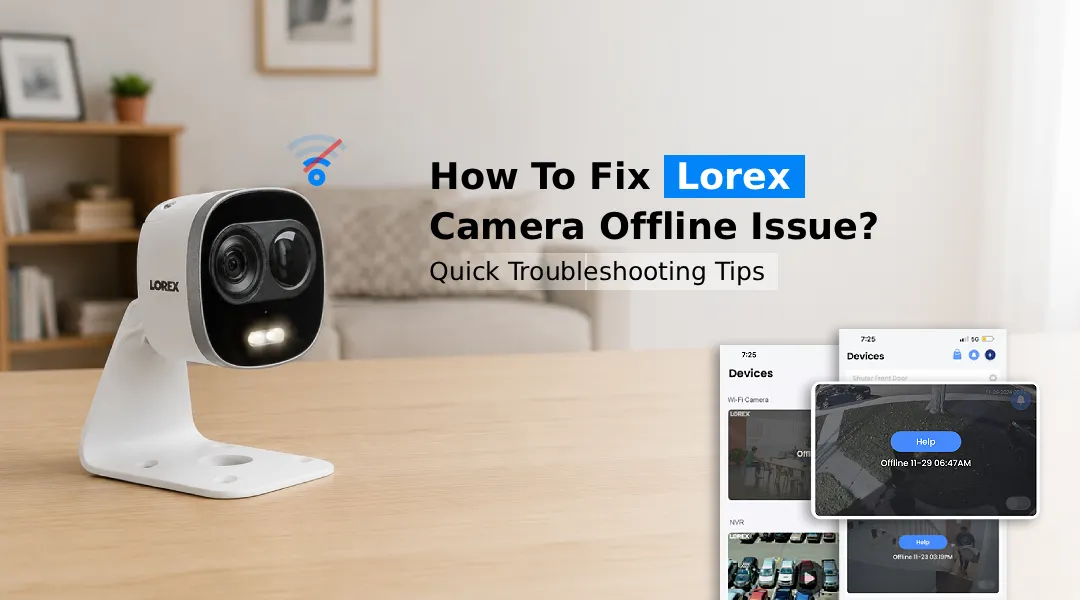
To fix a Lorex Camera Offline issue, check the camera’s power supply and network connection first. Restart the camera and router, verify the Wi-Fi settings, and reconnect the device through the Lorex app if necessary.
Is your Lorex camera offline and leaving your home or business unprotected? A Lorex Camera Offline issue can happen because of network problems, power interruptions, incorrect Wi-Fi settings, or outdated software. Many common connection problems can be resolved with basic troubleshooting.
This guide walks you through every proven solution, from basic restarts to firmware updates, so you can get your system back online fast.
Why is My Lorex Camera Offline?
Before jumping to fixes, it helps to know why Lorex cameras keep going offline in the first place. The most common causes include:
- Weak or dropped Wi-Fi signal
- Router changes or network configuration issues
- Power outages disrupting the connection
- Outdated firmware
- Incorrect login credentials on the Lorex app
- IP address conflicts on the local network
Now let’s fix it.
How to Fix a Lorex Camera Offline Issue?
1. Check Your Internet Connection First
This sounds obvious, but it’s the step most people skip. Open another device, your phone or laptop, and confirm the internet is working. If it’s slow or down, your camera going offline has nothing to do with the camera itself.
Also check whether your router is broadcasting on the correct frequency. Wi-Fi compatibility can vary by Lorex camera model. Check your camera’s specifications to confirm whether it supports 2.4 GHz, 5 GHz, or both. If your router recently auto-switched bands or you upgraded your router, your camera may have lost its connection silently.
2. Power Cycle Your Camera and Router
Restarting the camera, router, and modem can help resolve temporary network or connection problems.
Here’s how to do it:
- Unplug your Lorex camera from its power source
- Unplug your router and modem
- Wait a full 60 seconds
- Plug the modem back in first, then the router, wait for them to fully connect
- Finally, plug your Lorex camera back in
- Open the Lorex app and check the camera status
This clears temporary network errors, refreshes IP assignments, and resets the connection handshake between the camera and your network.
3. Fix Lorex Camera Offline After Power Outage
A Lorex Camera Offline issue can occur after a power outage if the camera or network equipment does not reconnect properly. When power is suddenly cut and restored, cameras sometimes fail to reconnect to the network automatically.
Try these steps:
- Perform a full power cycle as described above
- Check whether your router and camera successfully reconnected to the network after the outage. If the camera uses a network configuration that depends on a specific IP address, verify that configuration as well.
- Log in to your router settings and confirm the camera’s IP is still reserved
- If you use a PoE (Power over Ethernet) setup, check that the NVR came back online properly
If the camera still won’t connect, try a soft reset (covered below).
4. Reconnect the Camera After a Wi-Fi Change
Changed your Wi-Fi password or switched to a new router? That’s a very common reason the Lorex app says cameras are offline. Your camera is still trying to connect to the old network credentials.
To fix this:
- Open the Lorex Home app
- Go to Device Settings for the offline camera
- Select Network Configuration or Wi-Fi Settings
- Enter your new Wi-Fi name (SSID) and password
- Save and allow the camera to reconnect
If the app doesn’t detect the camera at all, you may need to reset the camera and add it again as a new device.
5. Reset Camera to Factory Settings
If nothing else works, a factory reset is your next move. This wipes the camera’s saved network settings and lets you set it up fresh.
- Locate the reset button and follow the reset procedure recommended for your specific Lorex camera model. The reset method and required hold time can vary between models. After resetting, wait for the camera to restart before setting it up again.
- Re-add the camera through the Lorex Home app using your lorex.com credentials
Note: After a factory reset, you’ll need to reconfigure all your camera’s settings including motion zones, recording schedules, and notification preferences.
6. Update the Lorex App and Check Login
An outdated app version or expired session can cause the app to incorrectly show your cameras as offline even when they’re working fine.
Steps to check:
- Go to the App Store or Google Play and update the Lorex Home app to the latest version
- Log out of your account completely
- Visit the Lorex login on a browser and confirm your account is active
- Log back into the app and allow it to refresh device status
Sometimes simply logging out and back in resolves a sync error between the app’s cloud server and your camera.
7. Perform a Firmware Update
Outdated firmware can sometimes cause connectivity or performance problems. Check whether a firmware update is available for your specific Lorex camera model. Firmware updates may include improvements or fixes related to device performance and connectivity. Check for updates available for your specific Lorex camera model.
How to perform a Lorex Firmware Update:
- Log into the Lorex Home app or the web client at lorex.com
- Go to Device Management or System Settings
- Select Firmware Update or Check for Updates
- If an update is available, install it and allow the camera to restart
Always ensure your camera stays powered during a firmware update. Interrupting the process can corrupt the firmware and cause bigger problems.
Keeping firmware current is one of the best long-term habits for avoiding repeated offline issues.
8. Check for IP Address Conflicts
An IP address conflict can prevent a camera from communicating properly with other devices on the network. If you suspect an IP conflict, check your router’s connected-device list. To resolve this:
- Log into your router’s admin panel (usually at 192.168.1.1 or 192.168.0.1)
- Find the DHCP client list and look for duplicate IP addresses
- If you identify an IP conflict, follow your router’s instructions to assign a reserved or static IP address to the camera, if supported.
- Save the settings and reboot both the router and the camera
9. Check Signal Strength for Wireless Cameras
If your camera is wireless and placed far from the router, a weak signal may be causing intermittent drops. A weak or unstable Wi-Fi signal can cause wireless cameras to disconnect or become intermittently unavailable.
Solutions:
- Move your router closer to the camera, or vice versa
- Add a Wi-Fi extender or mesh node to strengthen coverage in that area
- Avoid placing cameras near thick concrete walls, large metal objects, or other electronics that cause interference
10. Contact Lorex Support if the Problem Persists
If you’ve tried every step above and your Lorex camera showing offline issue continues, the problem may be hardware-related, a faulty camera, a damaged ethernet port, or an issue with your NVR.
If the issue continues after troubleshooting, use the appropriate Lorex support options for your camera model. Have your camera model number and firmware information ready when contacting support. Have your camera model number and firmware version ready before you contact them, it speeds up the process significantly.
Frequently Asked Questions
Can a router issue cause the Lorex camera offline problem?
Yes, absolutely. The router is the bridge between your Lorex camera and the internet. If the router drops the connection, assigns a new IP, changes frequency bands, or has an unstable DHCP server, your camera will show as offline. Always restart your router first before troubleshooting the camera itself.
Does Lorex camera work without internet?
Lorex cameras can record locally to an NVR, DVR, or SD card without an active internet connection. However, remote viewing through the Lorex app, push notifications, and cloud features all require internet access. If your internet is down, the app will show cameras as offline even if local recording is still working.
How do I fix Lorex camera offline after changing the Wi-Fi?
You need to update the network credentials stored in your camera. Open the Lorex Home app, go to the camera’s settings, select Wi-Fi or Network Configuration, and enter your new Wi-Fi name and password. If the camera doesn’t appear in the app, perform a factory reset and re-add it as a new device using your lorex login.
Can restarting the router fix Lorex camera offline errors?
Yes, and it’s one of the most effective first steps. Routers can develop connection issues over time, especially after power outages or firmware updates. Restarting the router refreshes IP assignments, clears ARP cache, and re-establishes the connection with all connected devices including your Lorex camera.
Do I need to update firmware to fix Lorex offline issues?
Not always, but it’s strongly recommended. Outdated firmware can contain bugs that cause random disconnections, failed reconnections after outages, or app communication errors. Running a Lorex camera firmware update takes only a few minutes and often resolves persistent offline issues that other steps couldn’t fix.
Final Thoughts
A Lorex Camera Offline issue can often be resolved by checking the power supply, network connection, Wi-Fi settings, and camera software. If these steps do not help, resetting the camera or contacting Lorex support may be necessary. Start with the basics, power cycle your devices, check your Wi-Fi signal, and make sure your app is up to date. If those don’t work, go deeper with a reset, firmware update, or static IP configuration.
The key is working through the steps systematically. Start with the basic troubleshooting steps and move to advanced solutions if the camera remains offline. Bookmark this guide so you have it ready the next time your cameras go dark.