
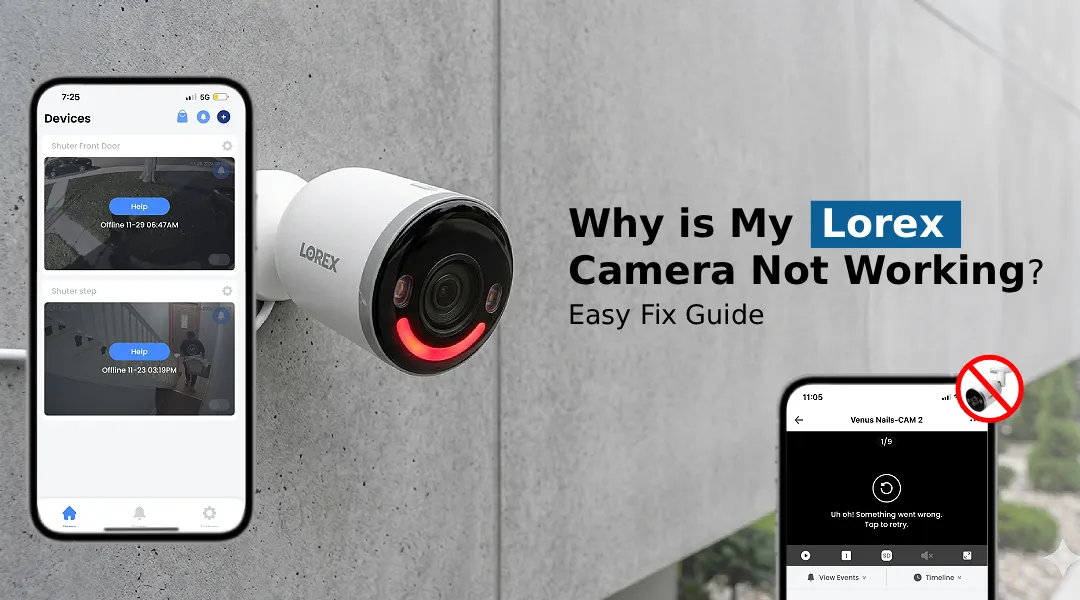
If your Lorex Camera Not Working issue occurs, first check the power connection, network status, and camera settings. Restart the camera and router, update the Lorex app, and reconnect the camera if needed.
If you’ve just discovered that your Lorex camera is not working, you’re not alone. Like any technology, Lorex cameras can occasionally experience connectivity, power, software, or configuration problems. Whether your camera has gone offline, is showing a black screen, or simply isn’t connecting the way it should, this guide walks you through every common cause and the exact steps to fix it, fast.
Reasons Why Your Lorex Camera May Not Work?
The most common reasons a Lorex camera stops working include:
- Loose or damaged power/cable connections
- Network or Wi-Fi connectivity issues
- Outdated firmware
- App or software configuration errors
- Physical obstructions or hardware faults
The good news? Most of these problems are easy to diagnose and resolve at home without calling a technician.
Why Is My Lorex Camera Not Working on the App?
Below are the most effective steps to troubleshoot common Lorex camera issues.
- Inspect the power adapter and ensure it’s firmly plugged into both the camera and the outlet. For wired cameras, check that the Ethernet cable is securely seated at both the camera and the NVR/router. Try a different power outlet or cable to rule out a hardware fault.
- A simple restart resolves a surprising number of issues and should always be your second step. Power off your Lorex camera by unplugging it from the power source. Wait 30 seconds and then plug it back in. If you use an NVR (Network Video Recorder), restart that as well. Also restart your router to refresh the network connection.
- Network problems can prevent Lorex cameras from connecting or displaying live video, especially on wireless models.
- Confirm your Wi-Fi network is active and other devices can connect to it. Ensure that your camera is within a strong Wi-Fi signal range of your router and reduce interference from walls or other wireless devices. Check your specific Lorex camera’s specifications to confirm whether it supports 2.4 GHz, 5 GHz, or both Wi-Fi bands.
- Log into your router settings and verify the camera’s IP address hasn’t changed or conflicted with another device. If you use a static IP setup, confirm it’s configured correctly in the Lorex client software or NVR menu.
Why is my Lorex Camera Not Working at Night?
If your camera works fine during the day but fails after dark, the issue is typically related to infrared (IR) night vision. Here are some fixes to help you:
- Go to your camera’s settings and ensure night vision is set to “Auto” or “IR Mode.” If it’s manually turned off, your camera will display a black screen after dark.
- If your camera is pointed through a window, IR light bounces back and washes out the image. Reposition the camera outside the glass, or disable IR and use an external light source instead.
- Even a thin layer of dust or moisture on the lens can scatter IR light and cause a blurry or washed-out night image. Gently clean the lens with a microfiber cloth.
- If the monitored area is beyond your camera’s stated IR range, consider adding supplemental lighting or repositioning the camera.
Resolve Lorex Camera Not Working on Phone
Viewing your Lorex feed remotely through your smartphone is one of its most useful features, but when it breaks, it’s frustrating.
- Open your device’s App Store or Google Play Store and check for pending updates. Check for app updates, as an outdated app can sometimes cause connection or compatibility issues.
- Switch between Wi-Fi and mobile data to identify if one connection works better.
- Sometimes removing the camera from the app and re-pairing it from scratch clears authentication errors.
- Go to your phone’s settings and ensure the Lorex app has permission to access your local network and, if required, your location.
- For remote viewing, verify that your NVR or camera is connected to the internet and that remote access is enabled in the applicable Lorex app or system settings.For remote viewing, verify that your NVR or camera is connected to the internet and that remote access is enabled in the applicable Lorex app or system settings. If your phone app still won’t connect, try using Lorex’s web portal as a temporary workaround while you troubleshoot.
Why Is My Lorex Camera Not Working on the App?
If your Lorex cameras are not working in the app across multiple devices, the issue may be related to the app, network, or account rather than a single camera.
Systematic app troubleshooting:
- On Android, check the Lorex app settings and clear its cache if that option is available. On iOS, consider deleting and reinstalling the app.
- Check Lorex’s support resources for any reported service, app, or connectivity issues that could affect remote viewing.
- An NVR running old firmware may be incompatible with the latest app version.
- If you use Lorex’s DDNS service for remote access, confirm it’s properly configured and that your dynamic IP address has updated correctly.
How to update the firmware on your Lorex Camera?
Outdated firmware can sometimes cause connectivity, compatibility, or performance problems. Check whether a firmware update is available for your specific Lorex model. A Lorex Camera firmware update may resolve bugs, improve compatibility or connectivity, and restore features affected by firmware-related issues.
How to update Lorex camera firmware:
- Log into your NVR interface or the Lorex web portal.
- Navigate to System > Maintenance > Firmware Update.
- Select Check for Updates and, if an update is available, follow the on-screen instructions to install it.
- Alternatively, visit the official Lorex support website, find your camera model, download the latest firmware file, and apply it manually via the NVR or Lorex Config Tool.
Important: Never interrupt the firmware update process by powering off the device. Always back up your NVR configuration settings beforehand.
Factory Reset as a Last Resort
If nothing else has worked, a factory reset will restore your camera to its original out-of-box settings, clearing any corrupted configurations.
How to reset a Lorex camera:
- Locate the Reset button on the camera body (usually a small pinhole near the base or rear).
- Press and hold the Reset button according to the instructions for your specific Lorex camera model until the reset process begins.
- After resetting, you’ll need to go through Lorex camera setup again from scratch, including re-adding the camera to your NVR or app.
Only use this option if all other troubleshooting steps have failed.
FAQs
Why does my Lorex camera show a black screen?
Why is my Lorex camera offline?
How do I reconnect my Lorex camera to Wi-Fi?
Why is my Lorex NVR not detecting my camera?
Can a Lorex camera be hacked or blocked, causing it to stop working?
The Final Word
In many cases, checking the power, network connection, app, and camera settings can help restore normal operation.